NFS: Carbon on Windows 10 and 11: Launching, patches and widescreen fix
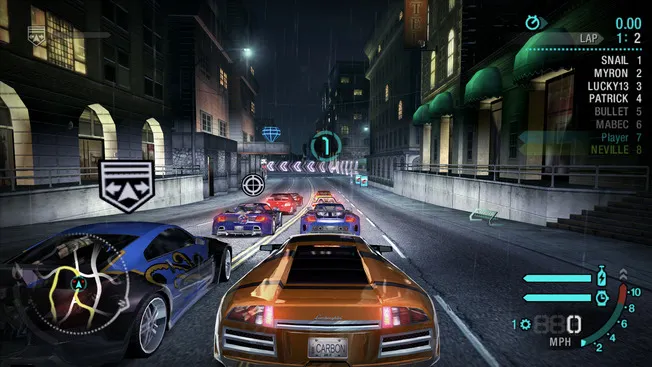
Need for Speed: Carbon is loved by many, but on Windows 10 and 11 the game rarely runs "as is". The 2006 release was designed for the Windows XP and DirectX 9.0c era, and the project was removed from digital stores long ago. Below we'll look at what exactly prevents it from launching and how to get the game in order — from the automatic method to manual installation of the patch and widescreen fix, plus a Russian localization and fixes for common errors.
Why Carbon doesn't get along well with new systems
The original requirements are modest even by 2006 standards: Windows 2000/XP, a processor around 1.7 GHz, 512 MB of RAM, about 4.7 GB on disk, a 64 MB video card and DirectX 9.0c. Today it's the opposite — it's powerful hardware and the modern Windows shell that become the source of problems:
* The game is no longer sold digitally, so many people have a disc or an archived copy — and those need to be modified manually.
* The old engine knows nothing about widescreen displays, multi-core processors and high DPI, hence the stretched image, black screen and crashes out of nowhere.
* Official support has ended, so the only way is patches and fan fixes.
Good news: almost all of these troubles are cured with a couple of utilities.
The quick way: the NFSPatcher tool
The simplest option is NFSPatcher by KilLo445. The program downloads and applies official patches and widescreen fixes to classic NFS titles, including Carbon. It requires .NET Framework 4.8 and an internet connection to work.
1. Get the latest release of the utility — you can grab it from our download NFSPatcher or from the project's official page.
2. Extract the archive to any folder.
3. Run NFSPatcher.exe.
4. Select Carbon and click the install button — the patcher will fetch the necessary files itself.
This is convenient if you don't want to bother with versions: the tool will determine what your copy of the game needs. The project's author is KilLo445 on GitHub.
The manual way: patch 1.4 and Widescreen Fix
If you want to control every step, put everything together yourself.
1. Install the game on Windows 10 or 11 as usual — from a disc or from a saved copy.
2. Install the official patch. The update from EA brings Carbon to version 1.4 and fixes some compatibility issues. The patch was once distributed by EA itself; now it can be found in community archives — update the game specifically to 1.4.
3. Add the widescreen fix. The solution from the WidescreenFixesPack by ThirteenAG provides 16:9 and 21:9 support, resolutions up to 4K, a correct field of view (FOV) and support for modern gamepads.
A ready-made fix for Carbon is available in our download — Widescreen Fix for NFS: Carbon. The description lists FHD, QHD and 4K profiles: by default the resolution adapts to the desktop, and fine-tuning is done in the scripts/NFSCarbon.WidescreenFix.ini file. Installation comes down to one action — extract the contents of the archive into the game folder. The official page of the pack: ThirteenAG/WidescreenFixesPack.
> Important: before installing patches and fixes, make a copy of the game folder. The utilities modify game files, and a backup will save you if something goes wrong.
Russian localization
If you need Russian text, the Russian localization for Need for Speed: Carbon will do. It's a quality localization with an auto-installer, compatible with the SoftClub version of the game. Install it after you've dealt with the patch and fix, so the localization doesn't overwrite the changes.
Compatibility mode and modern video cards
Once the game is patched, all that's left is to make it work with the system:
* It won't launch or crashes at startup — enable Windows XP (SP3) compatibility mode for the executable and run it as administrator.
* The interface and image "float" on high-DPI monitors — in the file properties on the compatibility tab, disable DPI scaling.
* Set the resolution and aspect ratio through the widescreen fix's .ini, not through the game's own settings — that way the image won't be stretched.
Common errors and what to do
- Crash right after launch. Make sure the game is updated to version 1.4 and runs as administrator in compatibility mode.
- A black screen at startup is most often related to resolution and scaling — check the parameters in
scripts/NFSCarbon.WidescreenFix.iniand the DPI settings. - A stretched image is a sure sign that the widescreen fix isn't installed or the wrong screen format is selected. Install the fix and specify your aspect ratio.
- Sound problems are usually solved by checking DirectX 9.0c and selecting the correct output device in the system.
Related material on installing the game is available in our news about the Carbon archive.
Have you already run Carbon on a new system? Tell us what helped you in the comments — and follow the updates on nfs.place!
👉 Source: ThirteenAG WidescreenFixesPack, KilLo445 NFSPatcher