NFS: Most Wanted (2005): enabling 1920×1080 and wider without a stretched HUD
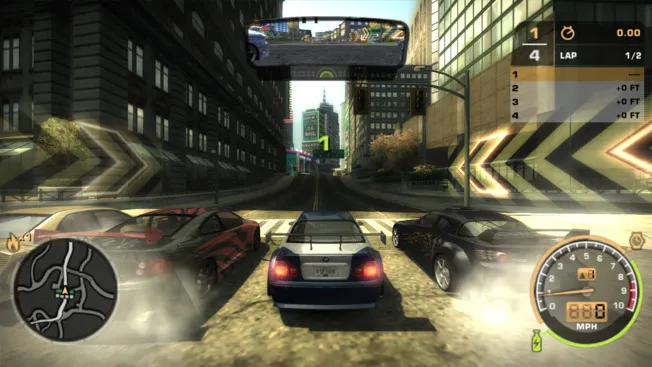
Need for Speed: Most Wanted (2005) was made for 4:3 monitors, and back in its release year nobody minded. Today, on any 16:9 screen, things are different: the image is either stretched horizontally, or black bars appear on the sides, and the interface loses its proportions. Below is how to bring back a proper widescreen look: from manually installing the fix to a "one-click" solution.
Why the original doesn't get along with widescreen
The EAGL engine was designed for a 4:3 frame — both the camera's field of view and the interface elements were tuned for it. At a resolution like 1920×1080, the game either stretches the 4:3 image across the full width or shows it with a border. Hence the "squashed" car, the stretched speedometer, and the suspiciously narrow field of view.
What ThirteenAG's Widescreen Fix offers
WidescreenFixesPack is a set of plugins for older games: they enable support for widescreen resolutions, fix related bugs, and add useful features along the way. The dedicated plugin for MW (2005) supports Full HD (1920×1080), QHD and 4K, and by default it adapts to your desktop resolution — most often the image fills the whole screen right after installation. Here's exactly what it fixes:
* HUD — brings the interface proportions in order so the speedometer, map and menus don't "drift".
* FOV — corrects the field of view for a wide frame instead of just cropping the image.
* UI and cutscenes — interface element scaling, video behavior and automatic fitting to screen width.
* As a bonus — other improvements and fixes the author bundled into a single plugin.
Manual installation: quick and without an installer
- Download the fix from our downloads section or from GitHub (author — ThirteenAG).
- Find the game's root folder — the one containing its executable file (.exe). It's not the saves folder and not a directory in "My Documents".
- Extract the contents of the archive right there. There's no installer: the files simply end up next to the game, and the nested
scriptsfolder takes its place. - Nothing else needs to be installed — the package already includes Ultimate ASI Loader, the loader that picks up .asi plugins.
- Launch the game and check the resolution.
> Important: just in case, back up a copy of the game folder before installing. The fix is not designed for Windows XP, and it's just as easy to remove — simply delete the same copied files, with no registry edits.
Fine-tuning: the .ini file
All parameters are collected in the text file scripts/NFSMostWanted.WidescreenFix.ini. Open it with "Notepad": the lines here look like parameter = value, and after the ; character the author left explanations. What to look at first:
* FixHUD — a value of 1 fixes the HUD aspect ratio. If the interface is stretched, it's best not to disable it.
* HudAspectRatioConstraint — constrains the HUD to a given frame: Auto, 16:9, 21:9 or a custom ratio. For a non-standard monitor it's convenient to set it manually.
* FixFOV and Scaling — field of view. The first parameter enables the correction, the second chooses its variant: 0 — original, 1 — as in the Xbox 360 version, 2 — mathematically correct.
* FEScale — the size of interface elements. Default is 1.00; if you want it more compact, like on consoles, aim for 0.92.
* FMVWidescreenMode — video behavior: 1 crops them to 16:9, 2 stretches them. The first option usually looks neater.
* AutoFitFE and AutoFitFMV — automatic fitting of the interface and videos to screen width. Useful on 16:10 and other non-standard ratios, but on formats already at 16:9 black bars may appear.
Changes take effect after restarting the game. If you don't like the result — restore the previous values or replace the file with the original from the archive.
The "one-click" option: NFSPatcher
If you don't want to bother with the archive and .ini, there's NFSPatcher — a small utility by KilLo445 (GitHub). It downloads the official patches itself (the ones EA once released) and applies widescreen fixes from the same WidescreenFixesPack.
Steps:
1. Install .NET Framework 4.8 if it's not already on your system.
2. Extract the program into a separate folder and run NFSPatcher.exe.
3. Select NFS: Most Wanted (2005) from the list — the utility supports the classic entries in the series.
4. Click Go! and wait for it to finish: patches are downloaded from the internet, so a connection is required.
5. Launch the game and check the result.
Common problems and how to solve them
- Stretched HUD — make sure
FixHUD = 1is set, and setHudAspectRatioConstraintif needed. - Black bars on the edges — check the in-game resolution against your desktop resolution; on non-standard ratios
AutoFitFEhelps. - Interface too large or too small — adjust via
FEScaleandAutoFitFE. - Narrow field of view, "flattened" image — enable
FixFOVand pick aScalingvalue. - Game won't launch or crashes — restore the .ini settings to their defaults, and if that doesn't help, delete the fix files. You can describe the error in the Issues of the project.
Already installed the fix on MW 2005? Share in the comments which settings suited your monitor, and keep an eye on updates at nfs.place!
👉 Source: ThirteenAG/WidescreenFixesPack — plugins for widescreen resolutions