NFS Underground 2 crashes on Windows 11: causes and how to fix it
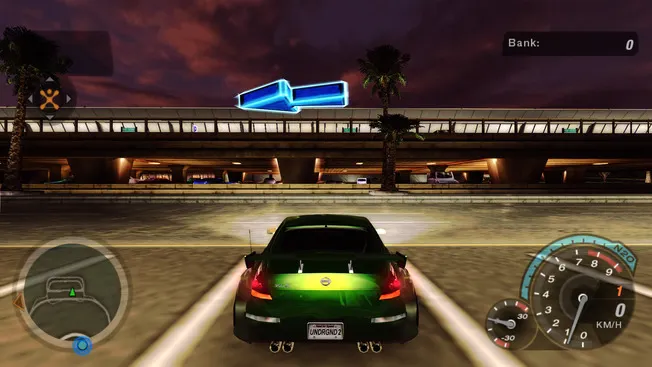
The classic Need for Speed: Underground 2 came out in 2004, and its engine was designed for single-threaded processors and 4:3 monitors. On modern Windows 11 such a game behaves unpredictably: a black screen at startup, a crash in the middle of a race, laggy sound in the menu, control settings that reset. Almost all of this can be fixed — with community patches and a couple of tweaks. Below is a step-by-step plan: where to start and what to do if nothing helped.
Why NFSU2 crashes on modern Windows
Before installing anything, it helps to understand the source of the problems — then it's clearer which step is responsible for what.
- Multi-core processors. The game engine is designed for old hardware and may crash on modern CPUs. This is exactly why Widescreen Fix has a Single Core Affinity option, which binds the game to a single core and prevents crashes.
- Widescreen monitors. The original is tailored for 4:3, and on 16:9 and ultrawide the image is stretched or cropped; this can also cause problems with launching and rendering.
- Lack of official support. EA stopped supporting the classics long ago, official patches have been removed from its servers, and with them — stability and compatibility with new Windows versions.
- Disc and protection. The game may require a disc in the drive, and anti-piracy mechanisms and specific builds of
speed2.exeare often the very cause of a startup error. - Specifics of the 24H2 update. After updating Windows 11 to 24H2, the fix stopped working for some players: the game starts with a prolonged black screen, and in the main menu the sound and music repeat and lag (see issue #1649).
Step 1. The basics: patch, rights and backup
Before installing any fixes, get the game in order.
- Make a backup copy of the game folder. This is mandatory: replacing
speed2.exeor editing files is irreversible, and otherwise there will be no way to roll the game back. - Update the game with the official patch, if it isn't installed yet. Manually searching for such patches has long turned into a quest, because they've disappeared from EA's servers.
- Run
speed2.exeas administrator and try compatibility mode with an older version of Windows — sometimes this is enough for non-obvious failures.
If the game still crashes after these steps — move on to the fixes. By the way, both key tools — Widescreen Fix and NFSPatcher — are already available in the nfs.place downloads.
Step 2. Widescreen Fix by ThirteenAG — the main fix
This is the key tool for NFSU2 on a modern PC. It not only fixes the image but also eliminates a significant part of the causes of crashes.
What it provides:
- proper support for any resolution, including ultrawide, correct HUD and FOV;
- fullscreen FMV cutscenes and removed letterbox in cutscenes;
- new options: skip intro, windowed/borderless mode, FPS limit (including synchronization with the monitor's refresh rate), increased FPS in cutscenes;
- gamepad support with Xbox/PlayStation/PC labels and configurable stick dead zones;
- Single Core Affinity — protection against crashes on multi-core processors;
- No Optical Drive — launching without a disc in the drive;
- Registry-Free Settings — storing settings in
settings.iniinstead of the registry, plus a custom save folder, sample rate override (44100 Hz), SMAA and an MSAA artifact fix.
How to install:
- Download the latest
.zipfrom the release (on our site this is the ready-made NFS Underground 2 Widescreen Fix — almost 25 thousand downloads, author ThirteenAG). - Extract the contents directly into the game folder — where
speed2.exeis located. - If desired, open
NFSUnderground2.WidescreenFix.iniand configure the parameters to your liking, first of all Single Core Affinity. - Launch the game.
Step 3. The automatic path — NFSPatcher
If you don't want to manually search for patches and arrange files, there's NFSPatcher by KilLo445. This is an open tool that does everything itself.
- It automatically downloads and installs official patches, applies widescreen fixes from WidescreenFixesPack by ThirteenAG and adds NoCD.
- Requires .NET Framework 4.8.
- NFSU2 is on the list of supported games.
- The author takes official patches from the Wayback Machine, since they're no longer on EA's servers. The tool is not affiliated with EA and requires a legal copy of the game.
Procedure:
- Install .NET Framework 4.8 if you don't have it.
- Download the archive — on the site this is the ready-made build NFSPatcher (version 1.0.4).
- Extract it to a convenient location and run
NFSPatcher.exe. - Select the game from the list, specify the game folder and click Patch.
In a few minutes you'll have a patched version with the widescreen fix and no disc requirement.
Step 4. Black screen after updating to Windows 11 24H2
A separate case — if after installing Widescreen Fix on 24H2 the game stopped launching normally. A known compatibility issue: on 23H2 the fix worked, but after updating to 24H2 a long black screen appears, and in the main menu the sound and music repeat and lag.
What to do, step by step:
- Temporarily remove
dinput8.dllfrom the game folder — this restores normal launching and confirms that the issue is indeed with the fix and the update. - Check whether a fresh version of the fix is available and update it if one has been released.
- Rolling the system back to the previous build only makes sense as a last resort — it's a temporary solution.
Important: this is not a universal recipe for everyone, but a diagnostic step specifically for 24H2.
Common symptoms and what to do
- Crash after a couple of minutes of play. Installing the widescreen fix and adjusting the X/Y resolution in its
.inihelps. - Crash when exiting a race or the shop. It's worth trying the related exe edits (sometimes making it "4G-aware" helps) and additional script fixes. NFSU2 Extra Options comes in handy for this — a plugin that fixes game bugs.
- Control settings lost after restart. A preventive measure is moving settings from the registry to a file via Registry-Free Settings from Widescreen Fix.
- Crashes when changing decals. New Decals will help here — according to its description, it's a patch that fixes crashes when working with decals.
- Problems specifically with the
speed2.exebuild. As an option, you can try Speed2.exe EU — the European executable. Be sure to make a backup of the original before replacing: not all builds benefit from an exe swap. - You want to refresh the interface. Optionally, you can install Scout's NFSU2 UI Remaster, but that's about looks, not stability.
Start with the base and Widescreen Fix — in most cases that's enough, then proceed based on the symptom.
Have you tried it yet? Share your opinion in the comments and follow the updates on nfs.place!
👉 Source: ThirteenAG WidescreenFixesPack — NFS Underground 2, NFSPatcher, issue #1649, TrishTech